
The Complete Budgeting Template (FREE)
Right now, I am going to give you a free budget template and show you how to create a personalized budget tailored to your financial and personal situation using Microsoft Excel or Google Sheets for free, and start levelling up your personal finances. The budget will cover everything from paying down debt to setting aside money for eating out each week.
The September 2025 savings rate in the United States was around 4%, while the Canadian household savings rate for a similar period was 4.7%. That means, for every $1,000 in income people earn, they save ONLY $40-50 on average!
What happened to our money…
The keyword there is our. Because after all, it is your, our, or my money, right? So where is it all going? Why does it disappear so fast from our bank accounts every month, every paycheck, even every week?!
Maybe you’re like me and spend too much money eating out, or you love Aritzia as much as Morgan does. Whatever your pleasure, you have decided to put the money back in your pocket.
It’s time to make a change and beat this statistic using a trustworthy budget! (my trustworthy budget  )
)
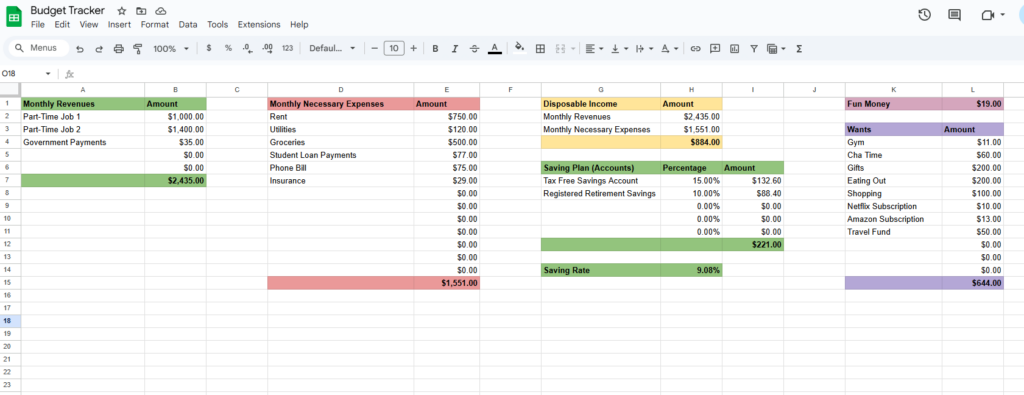
What the finished product will look like.
The First Step to Budgeting Success
The first step to budgeting is creating, or using, some sort of tool to manage your money (and committing to it).
Luckily for you, I created a COMPLETELY FREE budget template (spreadsheet) that anybody can use without prior knowledge on the subject. And to my second point, you made it as far as reading my blog post about budgeting, I’d say that’s committed!
(We’ll really see about that in 3 weeks…)
Throughout this post or the accompanying video, I’ll keep referring to this magical free budgeting template. You can download the template by clicking the button below!
Once you have downloaded the template, budgeting is simple. But first, let’s open that template!
How to Open my Magical Budgeting Template
You have three options to open my budget template and get these finances in order. The first is to use Google Sheets, the second is Microsoft Excel Online, and the third is Microsoft Excel.
To open my template, just head to one of the three options and follow the detailed instructions below!
- Google Sheets: Select the big ‘+’ sign or ‘Start a New Spreadsheet’, then head to ‘File’, then ‘Open’, then ‘My Computer’, then select my budget template that you downloaded!
- Microsoft Excel: On the left side, select ‘Open’, then my budget template file should show up; if not, head to ‘Browse’ and find the file in your computer files.
- Microsoft Excel Online: select ‘Upload File’ and select my file from your computer. If that does not work, then head to ‘Start New Workbook’, ‘File’, and ‘Open’ and select my file!
If you have a different software that can open .xlsx files and want to use it, then go ahead!
Starting Your Budget
First things first, we need to examine how much money we bring in every month.
For me, this is my two part-time jobs: the first earns me around $1000 every month, and the second earns me about $1400 every month. I also receive quarterly government payments, which average about $35 per month in income.
After adding all my incomes together, my total disposable income is $2,435. Your disposable income is the money left over after paying only your taxes. Usually, this is just your monthly paycheck if you have one job.
But….You don’t have to add all of your incomes; my magical budget template does it for you! Just enter your income and the appropriate amounts into the ‘Revenues’ table, as I did here, and let the template do the work.
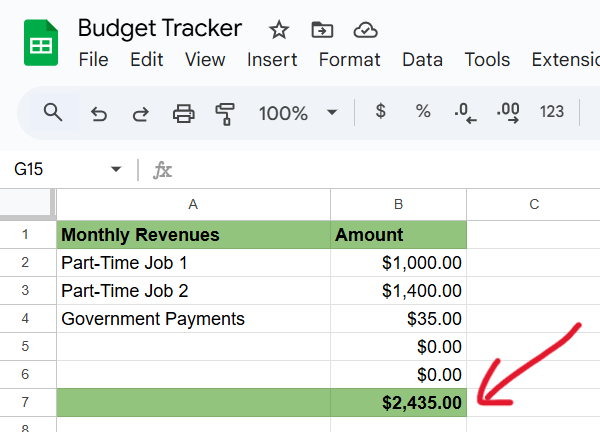
What step one should look like completed. The red arrow points to the total which will update automatically.
Calculating Your Necessary Monthly Expenses
Now that your income has been taken care of, let’s look at how much we HAVE TO SPEND every month. Here, in the ‘Monthly Necessary Expenses’ box, we will look at totalling what we need to spend each and every month.
This includes irreplaceable needs such as rent or mortgage payments, groceries, and insurance, and you could include things like your car payments and phone bill here as well. Make sure to also include any necessary debt payments, such as minimum credit payments, lines of credit, or big loan payments (boats, furniture, anything you finance and pay monthly). Just the monthly amount, not the total balance.
Like I said, the keyword here is irreplaceable needs; eating out, Netflix, and Starbucks are all great, but not irreplaceable. If you want a budget (my budget) to work, you will have to truly enter only what’s necessary here; the fun stuff like Starbucks comes into the budget later!
For me, these irreplaceable expenses include my monthly rent, utilities, groceries, student loan payments, phone bill, and insurance. Yours might look longer or shorter; you can add more rows if you need to, no worry!
After entering the account names and amounts, you will see that the template automatically totals my (and your) necessary expenses, but it also does something else…
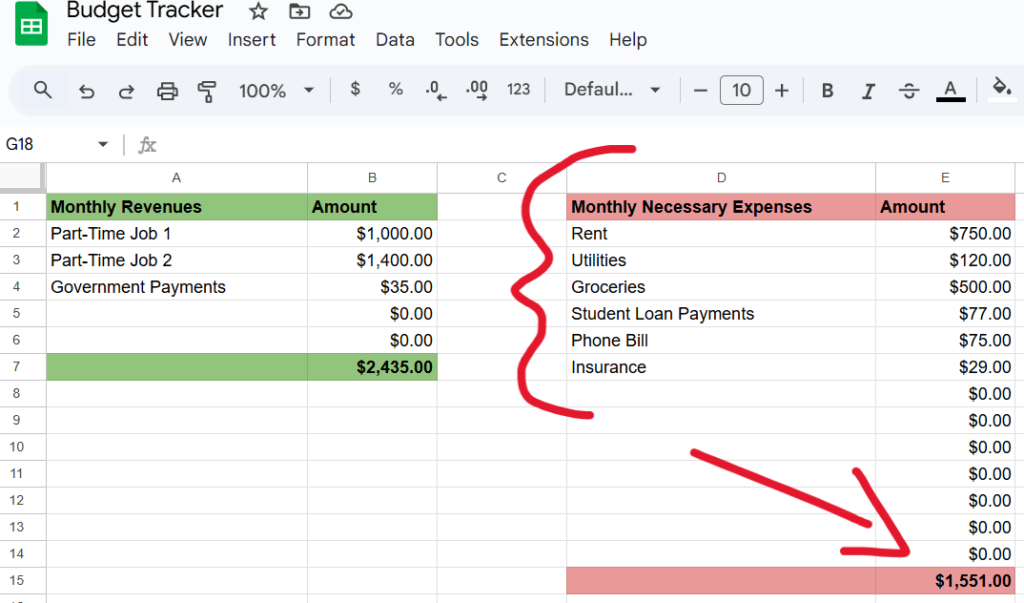
The arrow points to the total expenses which updates automatically. The brace represents where I entered my monthly expenses.
Disposable Income
If you look over to the right of your budget, there should be a yellow box called ‘Disposable Income’. This ‘Disposable Income’ is the money left over after paying for all necessary items.
The disposable income box will automatically update for you after you finish entering all your income and expenses in the green and red boxes…no work required, woohoo!
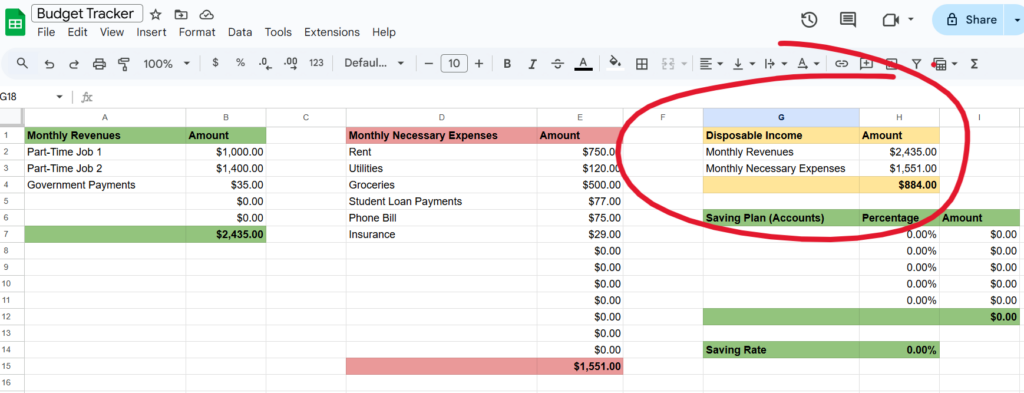
The red circle shows where the disposable income section is. This box updates automatically you do not have to enter anything.
Disposable income is the money left over that you can spend on whatever you want!
But…we are doing this budget thing for a reason, remember?
Saving Your Disposable Income
To use it wisely, we should probably save some of it. Now, the green box below the disposable income box is called the ‘Savings Plan’. The ‘Savings Plan’ is used to contribute money to your RRSP, Roth IRA, 401k, TFSA, RESP, 529, high-yield savings, all of those good accounts!
It’s simple, you type what proportion (percentage) of your disposable income you want to contribute to that account, and enter it in the percentage field. It automatically adjusts the total for you. It also does something else?
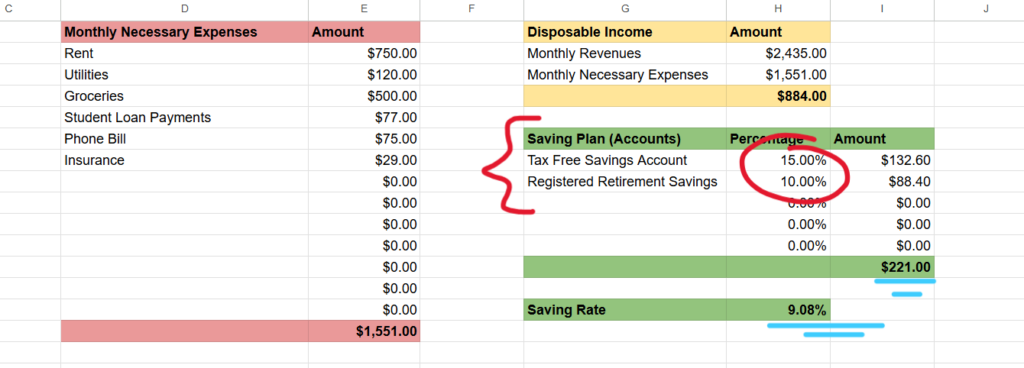
The brace is where you enter the saving plan names. The red circle is where you enter the percentages you want to save of your disposable income. The first blue underlines show how much your saving plan totals each month. The second blue underline illustrates your income savings rate which is the quotient of your savings plan total and total income.
Remember how I said the average household savings rate was between 4% and 5%, after using the savings plan, you can automatically see where you fall. Just look below the ‘Savings Plan’ box to the small green box labelled ‘Saving Rate’.
After filling in the savings plan box, the savings rate will be automatically calculated and displayed. Like I said, 4%-5% is the average right now. Are you beating it?
If your savings rate isn’t quite what you wanted, that is okay! This whole budgeting thing is to get your personal finances in order, not someone else’s. Maybe you do not even save at all right now. In that case, 4% is great!
If you have room, then adjust your savings plan. But remember, you still have the fun expenses to cover!
Budgeting for the Good Stuff
Time for the good stuff. After making it through all of *that*, we land at the fun money.
This is the money left over after paying for literally everything that benefits us. The ‘Fun Money’ box appears in purple. The box automatically calculates the funds you have left over after both your expenses AND your savings. This is the *shopping spree* money. The *I want Taco Bell today* money.
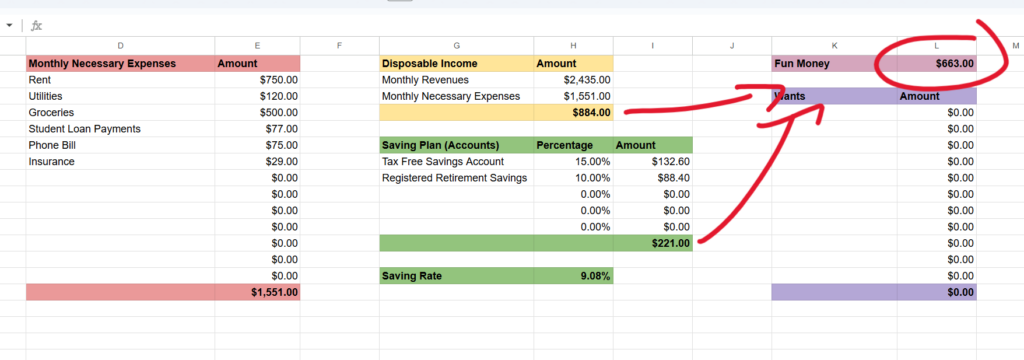
The red circle borders the fun money total which is the difference of the two arrowed numbers. It is the difference of the disposable income total and the savings plan total.
So let us waste no time. Designate to the wants in the box below the ‘Fun Money’: fast food, restaurants, Netflix, Amazon, the gym, shopping, etc. Do not be polite; it is better to overestimate and end up with more money to save in the end than underestimate.
Have fun with it! We journeyed through the entire process, hoping to have money left over for the good stuff. Now take advantage of it!
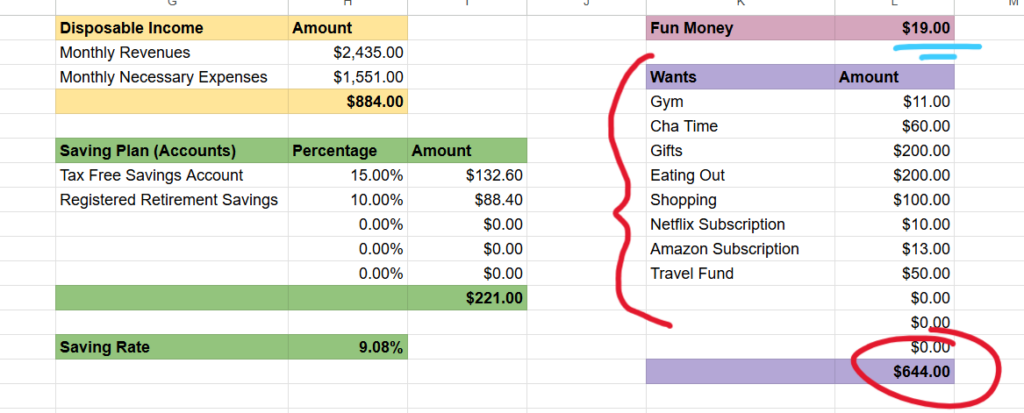
The red circle shows where the total budgeted for wants is. The blue line underlines the fun money total which updates automatically according to the wants total.
The ‘Fun Money’ total automatically lessens as you designate money to each and every want, so watch out! If you have money left over in the ‘Fun Money’ box after all of your wants, you could designate it to savings…or more wants. If the ‘Fun Money’ total is negative, then maybe discard a few wants. 🙁
Budgeting is a Tool
Remember, budgeting is tracking, designating, and organizing the flow of finances. Budgeting is a tool. The more important piece is you! You control when and where the money ends up, if you follow the budget, and if your finances improve.
Now show that money who is boss!!!
The finished product.
Financial Disclaimer
Any budgeting, saving, or financial examples shared on this site are for educational and informational purposes only and are not intended as financial, legal, or tax advice. Everyone’s financial situation is different, and results may vary based on individual circumstances, decisions, and external factors. You should consider your own situation carefully and, where appropriate, consult a qualified professional before making financial decisions.
Disclaimer
The information shared on this blog is for general informational purposes only. Any actions you take based on the content here are done at your own discretion and risk. I do my best to provide accurate and helpful information, but I make no guarantees about completeness, reliability, or accuracy.
As an Amazon and Viator Associate/Affiliate, I earn from qualifying purchases. I only recommend products or services that I personally use and believe in.
Comments are welcome and encouraged, but all comments are subject to approval. This helps protect the site from spam, malicious content, or inappropriate behaviour. I aim to approve all genuine comments that follow basic respect and relevance guidelines.
Thank you so much for reading and as I mentioned earlier if you have any questions I didn’t get to make sure to leave them down below and I’ll answer them promptly, it helps not only yourself but maybe others who have the same questions!
Statistics References
USA: https://fred.stlouisfed.org/series/PSAVERT
Canada: https://www150.statcan.gc.ca/t1/tbl1/en/tv.action?pid=3610011201